


































Help

About HelpyScan
HelpyScan is a small, fast document scanner for Android. It works as a local scanner, with your phone's camera, and with scanners shared on your network with SANE. It straightens pages, makes them clean or black and white, saves or sends them as pictures or PDF, and reads their text.
The text is read on your phone by NativeOCR, NativeSoft's own innovative OCR engine, an optimized extension of NativeHelpy. Nothing is uploaded: no cloud, no account, no ads.
Scan a page
- On the main screen, tap Take a photo (the phone's camera opens) or Choose a photo (a picture you already have).
- The photo opens with four round corners. Drag each one onto a corner of the sheet. Whole photo puts them back on the photo's edges.
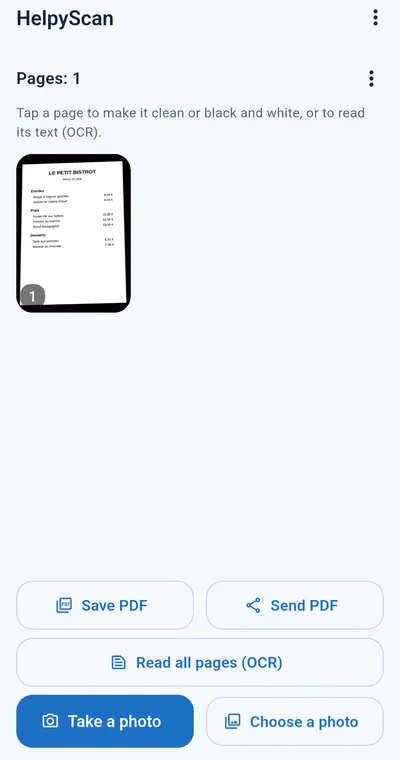
- Tap Add the page. The page is straightened, as a flatbed scanner would give it, and appears on the main screen with its number.
- Add as many pages as you want. They stay on the phone, also after the app is closed, until you delete them.
Step by step: paper to PDF
- Tap Take a photo and photograph the first page.
- Drag the four corners onto the corners of the sheet and tap Add the page.
- Do the same for every page: they line up in order on the main screen.
- Tap a page to check it; choose Clean or B&W if the paper is yellowish or the light was weak.
- Tap Save PDF to keep the document where you choose, or Send PDF to send it by WhatsApp or e-mail.
- For a new document, open the menu next to Pages and choose Delete all pages.
Tips for a good scan
- Photograph the sheet from straight above, with the whole page in the picture.
- Use daylight or a bright room, and keep your shadow off the page; hold the phone still.
- A dark table under a white sheet makes the corners easy to see.
- On a network scanner, 200 dpi is enough for text; choose 300 dpi for small print.
Clean and black-and-white pages
Tap a page on the main screen to open it, then choose under it:
- Clean: yellowish or recycled paper becomes white, shadows fade, and the text keeps its colours (a red title stays red).
- B&W: a white page with black text, for printing, archiving and the sharpest reading.
- Original: the page as it was scanned. The original is always kept, so you can switch at any time.
The look you choose is the one that is saved, sent and put into the PDF.
Read the text (OCR)
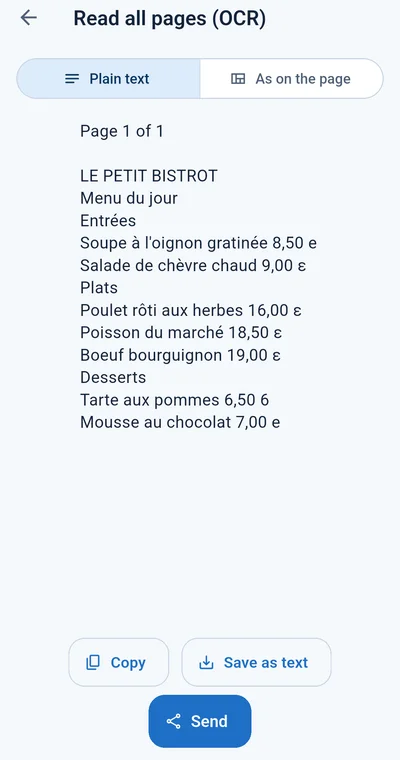
For one page: open it and tap Read the text (OCR). For the whole document: tap Read all pages (OCR) on the main screen; every page is read in turn, the progress shown at the top, each page under its number.
The text comes in two forms, chosen at the top:
- Plain text: the words flowing, ready to paste into an e-mail, a document or a form.
- As on the page: every line where it stands, so a menu, a price list or a table keeps its columns.
Copy it, save it as a text file, or send it. A page photographed sideways or upside down is turned upright on its own.
Languages
NativeOCR reads 36 languages: all 24 official languages of the European Union (Bulgarian, Croatian, Czech, Danish, Dutch, English, Estonian, Finnish, French, German, Greek, Hungarian, Irish, Italian, Latvian, Lithuanian, Maltese, Polish, Portuguese, Romanian, Slovak, Slovenian, Spanish, Swedish) and 12 more: Albanian, Arabic, Chinese, Hebrew, Hindi, Japanese, Korean, Persian, Russian, Serbian, Turkish, Ukrainian.
You never choose the language of a document: the engine reads all of them, also several on one page, whatever your phone's language. The app itself is in the same 36 languages; it follows your phone, and Settings lets you choose another one.
Save and send
- A page: open it, then the share button at the top sends it as a picture; the menu next to it saves it.
- The whole document: Save PDF or Send PDF on the main screen.
- Sending opens your phone's own menu: WhatsApp, e-mail, Drive, Bluetooth or any other app you have.
Network scanner (SANE)
HelpyScan also scans with a flatbed or document scanner shared on your network with SANE (the saned server, for example on a Linux computer or a NAS).
- Open the menu (the three dots) and Settings.
- Under Network scanner (SANE), type the scanner server's address, for example 192.168.1.20.
- The port is 6566, SANE's usual one; change it only if your server uses another.
- Choose colour or gray and the resolution (150, 200 or 300 dpi), then tap Test the connection: the scanner's name appears.
- Back on the main screen, place the page on the scanner's glass and tap Scan from the scanner. The page comes in already straight.
Your phone and the scanner server must be on the same network. The app connects only to the address you typed.
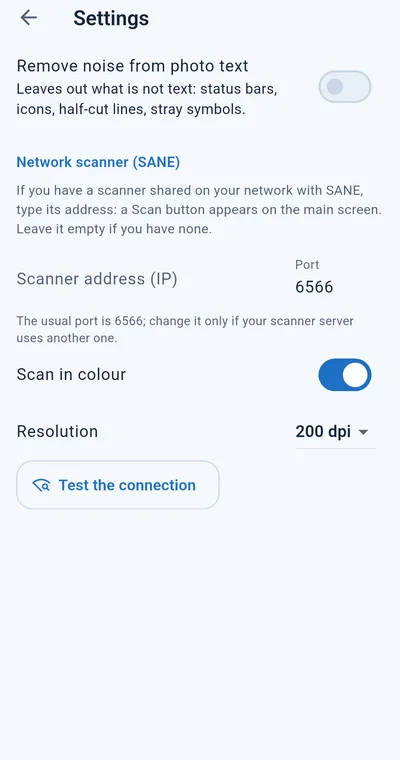
Settings
- Language of the app: your phone's language, or any of the 36.
- Remove noise from photo text: leaves out what is not text, such as status bars, icons and half-cut lines (off unless you turn it on).
- Network scanner (SANE): the address, the port, colour and resolution.
Free and Premium
Scanning, straightening, the clean pages, reading the text, copying and sending are free for everyone, with no ads. In the free version every page you save or send has a small nativehelpy.com line under it, and a PDF holds up to 5 pages.
Premium is a yearly subscription in Google Play: no line, PDFs of any length. Open it from the menu with HelpyScan Premium. It renews until you cancel it in Google Play; on a new phone, tap Restore purchases.
Privacy
The pages and their text stay on your phone until you save or send them yourself. Nothing is sent to us or to a cloud. The app has no account, no ads and no analytics, and it connects to the network only to the scanner whose address you type in Settings.
Contact
Questions or problems: [email protected]. Please write what you scanned, what you expected and the app's version, and leave out personal or confidential details.